
Text Cleaner Guide: Remove Extra Spaces, Blank Lines
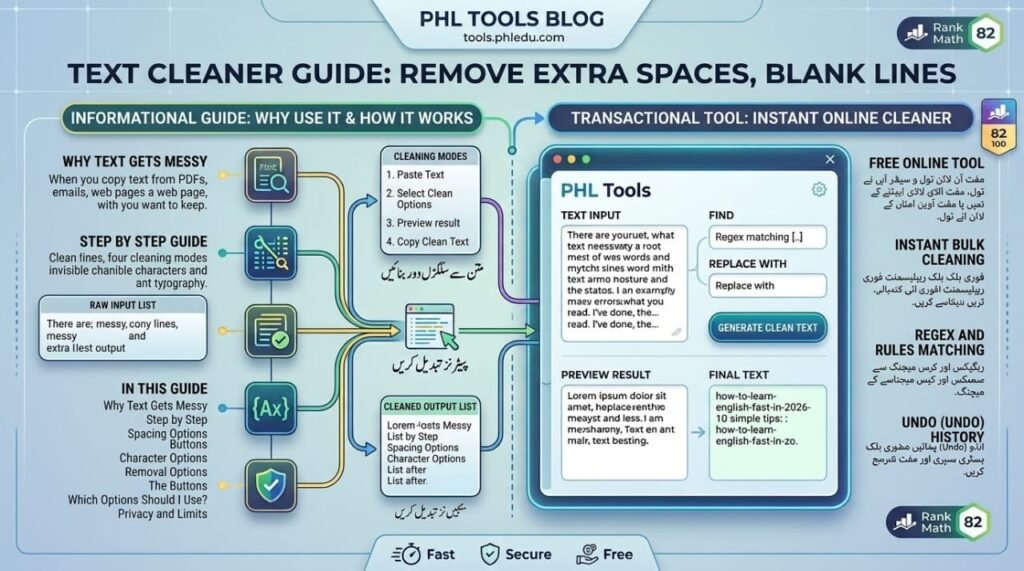
A text cleaner fixes messy text in seconds. Text copied from PDFs, emails and web pages often arrives with double spaces, broken lines, blank gaps and invisible characters. The free PHL Tools Text Cleaner removes extra spaces and blank lines, fixes line endings, straightens curly quotes and can strip HTML, emoji, digits or punctuation when you choose. This complete guide explains every option, which ones are safe, and how to clean text without losing a single word you want to keep.
Why Text Gets Messy
When you copy text from another place, you copy its hidden formatting too. A PDF may put a line break after every line. An email may add double spaces and many blank lines. A web page may add non-breaking spaces and invisible characters that you cannot see but that cause strange gaps in WordPress, Word or a spreadsheet.
The Text Cleaner removes these problems in one pass. You decide which fixes to apply, and the original text is never changed.
Step by Step: Clean Your First Text
- Open the Text Cleaner.
- Paste your text into Your text.
- The cleaned version appears in Cleaned text straight away, using the default options.
- Check the before and after counts under the boxes to see what changed.
- Press Copy result or Download .txt.
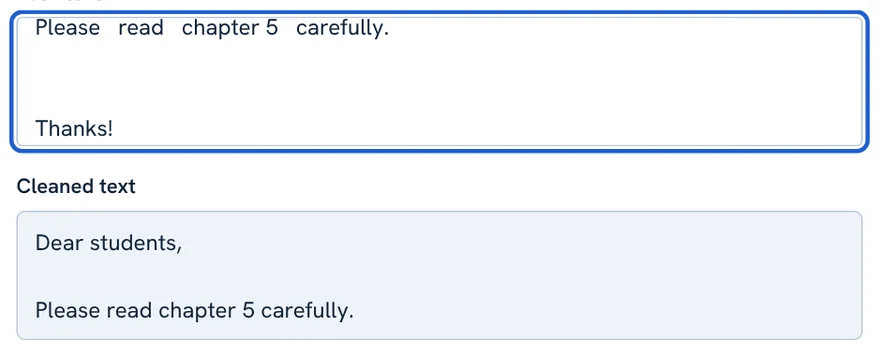
  Dear   students,


Please   read   chapter 5   carefully.


Thanks!
Dear students,

Please read chapter 5 carefully.

Thanks!
Extra spaces became single spaces, spaces at the line ends were trimmed, and long runs of blank lines became one blank line.
Spacing Options (Safe for Every Language)
These options only change whitespace. They never remove a word or letter, so they are safe to use on any text, including Urdu.
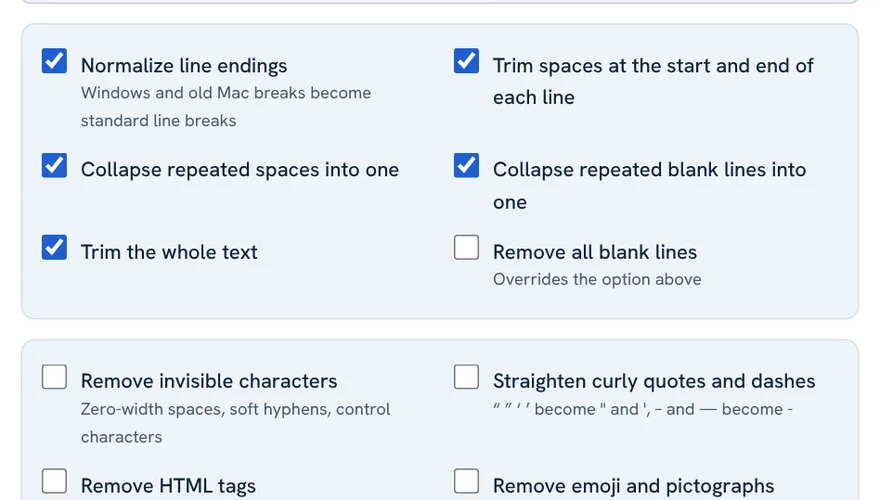
- Normalize line endings: Windows and old Mac line breaks become standard breaks. Fixes odd gaps when text comes from different systems. On by default.
- Trim spaces at the start and end of each line: removes invisible spaces that break alignment or matching. On by default.
- Collapse repeated spaces into one: turns double or triple spaces into a single space. On by default.
- Collapse repeated blank lines into one: keeps one blank line between paragraphs. On by default.
- Trim the whole text: removes blank space at the very start and end. On by default.
- Remove all blank lines: deletes every empty line, joining paragraphs tightly. It overrides the previous option, so use it only for lists.
Character Options: Invisible Characters and Typography
- Remove invisible characters: deletes zero-width spaces and joiners, byte-order marks, soft hyphens and control characters. These are a common cause of text that “looks fine but behaves wrongly” after pasting.
- Straighten curly quotes and dashes: changes “ ” ‘ ’ to plain quotes and replaces long dashes and ellipses with simple characters. Useful for code, spreadsheets and plain-text systems.
Removal Options: Use With Care
These options delete characters, so they start unticked. Tick one only when you really want those characters gone.

- Remove HTML tags: deletes anything that looks like
<tag>. Handy for turning copied web code into plain text. - Remove emoji and pictographs: strips emoji from captions or data.
- Remove digits: deletes numbers.
- Remove punctuation and symbols: deletes marks such as commas, dollar signs and smileys.
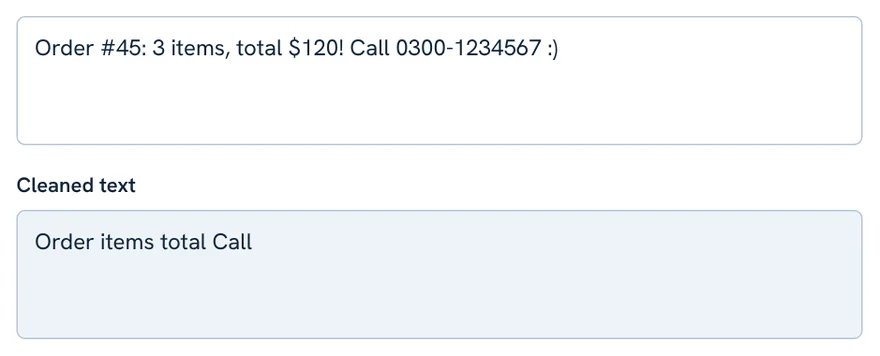
Order #45: 3 items, total $120! Call 0300-1234567 :)
Order items total Call
With digits and punctuation removed, only the words remain. If the result is wrong, untick the option and the text is processed again from your untouched original.
The Buttons
- Copy result: copies the cleaned text (Ctrl + Enter, or Cmd + Enter on Mac).
- Select result: highlights the output.
- Download .txt: saves the cleaned text as a file.
- Use result as input: moves the cleaned text into the input, so you can clean it again with different options.
- Paste: pastes from your clipboard.
- Try an example: loads sample messy text.
- Clear all: empties both boxes.
Which Options Should I Use? (Quick Recipes)
| Situation | Options |
|---|---|
| Text copied from a PDF with a break on every line | Defaults, then paste into Find and Replace to join broken lines if needed |
| Email text with many gaps | Defaults (collapse blank lines) |
| A list of names with trailing spaces | Trim each line, plus Remove all blank lines |
| Text pasted into code or a spreadsheet | Remove invisible characters and Straighten curly quotes |
| Copied web code to plain text | Remove HTML tags |
| Only the words from a sentence | Remove digits and Remove punctuation and symbols |
Privacy and Limits
Cleaning happens in your browser and nothing is uploaded. The tool cleans characters, not meaning: it does not fix spelling or grammar, and it cannot rebuild paragraphs that a PDF has split into separate lines. For that, remove blank lines first and then check the result by eye.
FAQ
Will the text cleaner delete my words?
No. The default options only change spacing. Options that remove characters, such as emoji, digits or punctuation, stay off until you tick them.
Is my original text changed?
No. Your input box is never altered. The cleaned version is shown separately, so you can untick an option and process the original again.
How do I remove extra spaces and blank lines?
Paste the text and leave the default options on. They collapse repeated spaces and repeated blank lines. For no blank lines at all, tick Remove all blank lines.
Can it clean Urdu text?
Yes for spacing. For Urdu and Persian, keep Remove invisible characters off because the zero-width non-joiner is sometimes needed for correct letter joining.
What are invisible characters?
Characters you cannot see, such as zero-width spaces, soft hyphens and control characters. They often come from web pages and cause odd behaviour when pasted.
Related tool guides
ٹیکسٹ کلینر بگڑا ہوا متن چند سیکنڈ میں ٹھیک کر دیتا ہے۔ پی ڈی ایف، ای میل اور ویب پیج سے کاپی کیے گئے متن میں اکثر ڈبل اسپیس، ٹوٹی لائنیں، خالی خلا اور نظر نہ آنے والے حروف آ جاتے ہیں۔ PHL Tools کا مفت ٹیکسٹ کلینر فالتو اسپیس اور خالی لائنیں ہٹاتا ہے، لائن اینڈنگ ٹھیک کرتا ہے، گھمائو دار کوٹس سیدھے کرتا ہے اور آپ کے چاہنے پر HTML، ایموجی، ہندسے یا رموزِ اوقاف بھی ہٹا سکتا ہے۔ اس مکمل گائیڈ میں ہر آپشن، محفوظ آپشنز اور اپنا مطلوبہ لفظ کھوئے بغیر متن صاف کرنے کا طریقہ بتایا گیا ہے۔
Why Text Gets Messy
جب آپ کسی دوسری جگہ سے متن کاپی کرتے ہیں تو اس کی چھپی ہوئی فارمیٹنگ بھی ساتھ آ جاتی ہے۔ پی ڈی ایف ہر لائن کے بعد بریک ڈال سکتی ہے۔ ای میل ڈبل اسپیس اور بہت سی خالی لائنیں شامل کر سکتی ہے۔ ویب پیج نان بریکنگ اسپیس اور نظر نہ آنے والے حروف ڈال سکتا ہے جو آپ کو دکھائی نہیں دیتے مگر ورڈپریس، ورڈ یا اسپریڈ شیٹ میں عجیب خلا پیدا کرتے ہیں۔
ٹیکسٹ کلینر یہ مسائل ایک ہی بار میں ہٹا دیتا ہے۔ کون سی اصلاحات لگانی ہیں یہ آپ طے کرتے ہیں، اور اصل متن کبھی نہیں بدلتا۔
Step by Step: Clean Your First Text
- ٹیکسٹ کلینر کھولیں۔
- متن Your text میں پیسٹ کریں۔
- صاف شدہ شکل ڈیفالٹ آپشنز کے ساتھ فوراً Cleaned text میں آ جاتی ہے۔
- خانوں کے نیچے پہلے اور بعد کی گنتی دیکھیں کہ کیا بدلا۔
- Copy result یا Download .txt دبائیں۔
  Dear   students,


Please   read   chapter 5   carefully.


Thanks!
Dear students,

Please read chapter 5 carefully.

Thanks!
فالتو اسپیس ایک اسپیس بن گئیں، لائنوں کے آخر کی اسپیس ہٹ گئی، اور خالی لائنوں کا لمبا سلسلہ ایک خالی لائن بن گیا۔
Spacing Options (Safe for Every Language)
یہ آپشنز صرف خالی جگہیں بدلتے ہیں۔ یہ کوئی لفظ یا حرف نہیں ہٹاتے، اس لیے ہر متن پر، اردو سمیت، محفوظ ہیں۔
- Normalize line endings: ونڈوز اور پرانے میک کی لائن بریک معیاری بریک بن جاتی ہیں۔ مختلف سسٹمز سے آئے متن کے عجیب خلا ٹھیک ہوتے ہیں۔ ڈیفالٹ آن۔
- Trim spaces at the start and end of each line: ہر لائن کے آغاز اور اختتام کی چھپی اسپیس ہٹاتا ہے جو ترتیب یا میچنگ خراب کرتی ہے۔ ڈیفالٹ آن۔
- Collapse repeated spaces into one: ڈبل یا ٹرپل اسپیس کو ایک اسپیس بناتا ہے۔ ڈیفالٹ آن۔
- Collapse repeated blank lines into one: پیراگرافوں کے درمیان ایک ہی خالی لائن رکھتا ہے۔ ڈیفالٹ آن۔
- Trim the whole text: پورے متن کے آغاز اور آخر کی خالی جگہ ہٹاتا ہے۔ ڈیفالٹ آن۔
- Remove all blank lines: ہر خالی لائن مٹا دیتا ہے اور پیراگراف جُڑ جاتے ہیں۔ یہ پچھلے آپشن پر غالب آتا ہے، اس لیے صرف فہرستوں کے لیے استعمال کریں۔
Character Options: Invisible Characters and Typography
- Remove invisible characters: زیرو وِڈتھ اسپیس اور جوائنر، بائٹ آرڈر مارک، سافٹ ہائفن اور کنٹرول حروف مٹاتا ہے۔ پیسٹ کے بعد “دیکھنے میں ٹھیک مگر کام میں غلط” متن کی یہ عام وجہ ہیں۔
- Straighten curly quotes and dashes: “ ” ‘ ’ کو سادہ کوٹس میں بدلتا ہے اور لمبی ڈیش اور ellipsis کی جگہ سادہ حروف رکھتا ہے۔ کوڈ، اسپریڈ شیٹ اور سادہ ٹیکسٹ سسٹمز کے لیے مفید۔
Removal Options: Use With Care
یہ آپشنز حروف حذف کرتے ہیں، اس لیے شروع میں ٹک نہیں ہوتے۔ صرف تب ٹک کریں جب واقعی وہ حروف ہٹانے ہوں۔
- Remove HTML tags:
<tag>جیسی ہر چیز مٹاتا ہے۔ کاپی کیے ہوئے ویب کوڈ کو سادہ متن بنانے کے لیے مفید۔ - Remove emoji and pictographs: کیپشن یا ڈیٹا سے ایموجی ہٹاتا ہے۔
- Remove digits: ہندسے مٹاتا ہے۔
- Remove punctuation and symbols: کاما، ڈالر کا نشان اور سمائلی جیسی علامات مٹاتا ہے۔
Order #45: 3 items, total $120! Call 0300-1234567 :)
Order items total Call
ہندسے اور رموزِ اوقاف ہٹانے پر صرف الفاظ بچتے ہیں۔ نتیجہ غلط ہو تو آپشن کا ٹک ہٹا دیں، متن آپ کے اصل سے دوبارہ پراسیس ہوگا۔
The Buttons
- Copy result: صاف شدہ متن کاپی کرتا ہے (Ctrl + Enter، میک پر Cmd + Enter)۔
- Select result: آؤٹ پٹ ہائی لائٹ کرتا ہے۔
- Download .txt: صاف شدہ متن فائل میں محفوظ کرتا ہے۔
- Use result as input: صاف شدہ متن کو ان پٹ میں لے جاتا ہے تاکہ آپ اسے مختلف آپشنز سے دوبارہ صاف کر سکیں۔
- Paste: کلپ بورڈ سے پیسٹ کرتا ہے۔
- Try an example: نمونے کا بگڑا متن لوڈ کرتا ہے۔
- Clear all: دونوں خانے خالی کرتا ہے۔
Which Options Should I Use? (Quick Recipes)
| صورتحال | آپشنز |
|---|---|
| پی ڈی ایف کا متن جس میں ہر لائن پر بریک ہے | ڈیفالٹ، پھر ضرورت ہو تو ٹوٹی لائنیں جوڑنے کے لیے Find and Replace |
| ای میل کا متن جس میں بہت خلا ہیں | ڈیفالٹ (خالی لائنیں کم کرنا) |
| ناموں کی فہرست جس کے آخر میں اسپیس ہیں | ہر لائن کی Trim، اور Remove all blank lines |
| کوڈ یا اسپریڈ شیٹ میں پیسٹ ہونے والا متن | Remove invisible characters اور Straighten curly quotes |
| کاپی کیا ہوا ویب کوڈ سادہ متن میں | Remove HTML tags |
| جملے سے صرف الفاظ | Remove digits اور Remove punctuation and symbols |
Privacy and Limits
صفائی آپ کے براؤزر میں ہوتی ہے اور کچھ اپلوڈ نہیں ہوتا۔ ٹول حروف صاف کرتا ہے، مفہوم نہیں: یہ ہجے یا گرامر ٹھیک نہیں کرتا، اور وہ پیراگراف دوبارہ نہیں بنا سکتا جنہیں پی ڈی ایف نے الگ لائنوں میں توڑ دیا ہو۔ اس کے لیے پہلے خالی لائنیں ہٹائیں اور پھر نتیجہ آنکھ سے دیکھ لیں۔
FAQ
کیا ٹیکسٹ کلینر میرے الفاظ حذف کرے گا؟
نہیں۔ ڈیفالٹ آپشنز صرف اسپیسنگ بدلتے ہیں۔ ایموجی، ہندسے یا رموزِ اوقاف ہٹانے والے آپشن آپ کے ٹک کرنے تک بند رہتے ہیں۔
کیا میرا اصل متن بدل جاتا ہے؟
نہیں۔ ان پٹ خانہ کبھی نہیں بدلتا۔ صاف شدہ شکل الگ دکھائی جاتی ہے، اس لیے آپ آپشن کا ٹک ہٹا کر اصل کو دوبارہ پراسیس کر سکتے ہیں۔
فالتو اسپیس اور خالی لائنیں کیسے ہٹائیں؟
متن پیسٹ کریں اور ڈیفالٹ آپشنز آن رہنے دیں۔ یہ بار بار آنے والی اسپیس اور خالی لائنیں کم کر دیتے ہیں۔ بالکل کوئی خالی لائن نہ چاہیے تو Remove all blank lines ٹک کریں۔
کیا اردو متن صاف ہو سکتا ہے؟
جی ہاں، اسپیسنگ کے لیے۔ اردو اور فارسی میں Remove invisible characters بند رکھیں کیونکہ درست جوڑ کے لیے کبھی کبھی زیرو وِڈتھ نان جوائنر ضروری ہوتا ہے۔
Related tool guides
More tool guides
Roman Urdu to Urdu Converter
Type Roman Urdu, get Urdu script. Click any word to pick another spelling.
Word Counter
Count words, characters, sentences and paragraphs, with reading time and keyword frequency.
Case Converter
Change text to UPPERCASE, lowercase, Title Case, camelCase, snake_case and more.