
Remove Duplicate Lines Online: Complete Guide
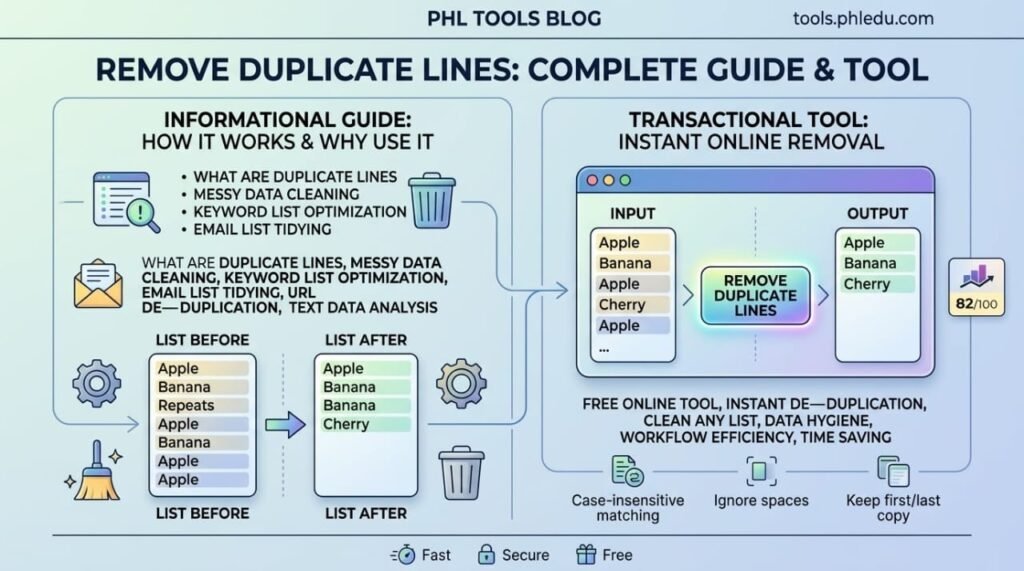
Need to remove duplicate lines from a list? Paste it into the free PHL Tools Duplicate Line Remover and get only the unique lines, in the original order. This complete guide explains every option: exact or case-insensitive matching, ignoring spaces, removing empty lines, trimming kept lines, and keeping the first or last copy. It works for keyword lists, emails, URLs, names and log files, shows how many duplicates were removed, and never uploads your list.
Why Remove Duplicate Lines?
Lists grow messy when you collect them from several places. A keyword list merged from three tools, a mailing list from many forms, or a list of URLs for internal links will almost always contain repeats. Counting them by eye is slow and unreliable.
The Duplicate Line Remover compares every line, keeps one copy of each repeated line and reports exactly how many it removed. The order of your list is preserved, so nothing is shuffled.
Step by Step: Clean a List
- Open the Duplicate Line Remover.
- Paste your list into the first box, one item per line.
- The unique lines appear in Unique lines at once.
- Check the counts under the boxes: lines in, lines kept, duplicates removed and empty lines removed.
- Press Copy result or Download .txt.
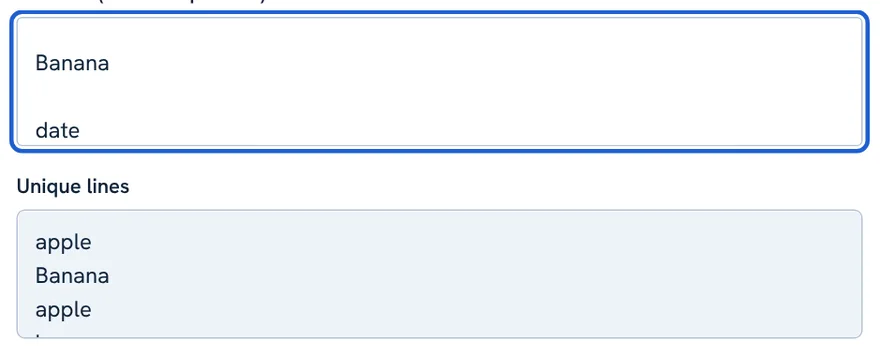
apple
Banana
apple
banana
cherry

Banana

date
apple
Banana
apple
banana
cherry

date
With the default options only the exact repeats were removed: the second Banana and the second empty line. apple (with a trailing space) and banana (lowercase) count as different lines, so they stayed. The options below fix that.
The Options Explained
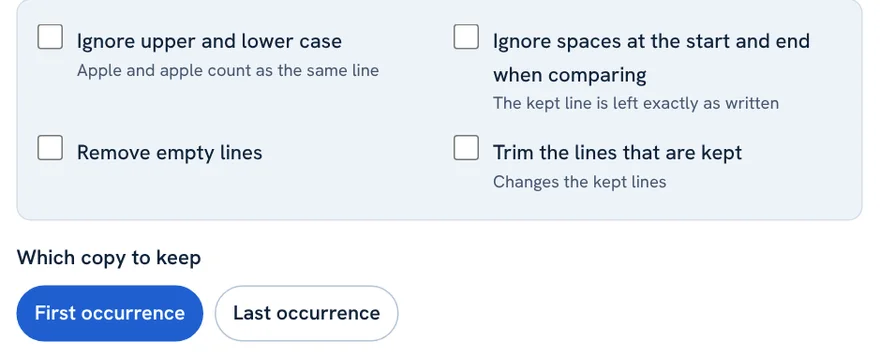
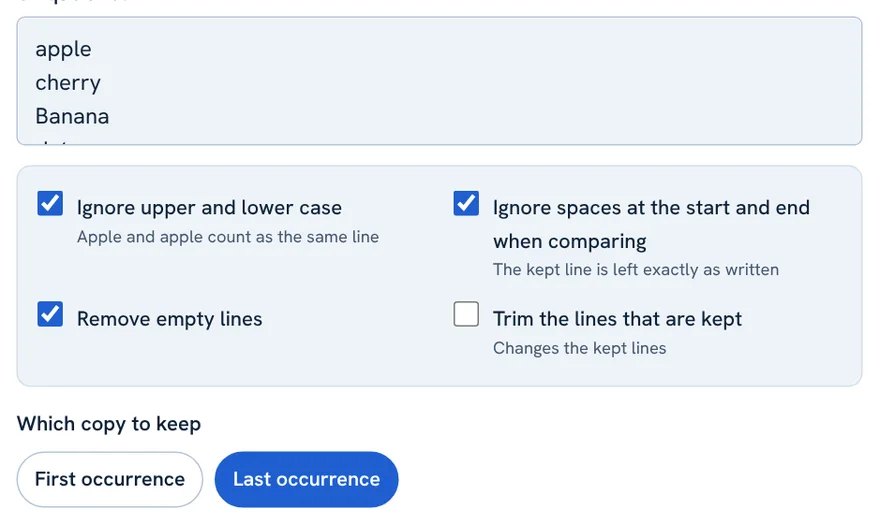
- Ignore upper and lower case: Apple and apple count as the same line. Tick it for keywords, emails and names.
- Ignore spaces at the start and end when comparing: lines that differ only by a space at the beginning or end count as the same. Very common in lists copied from spreadsheets. The kept line is left exactly as written.
- Remove empty lines: deletes blank lines completely and reports them separately from duplicates. Without it, only the first empty line is kept.
- Trim the lines that are kept: also removes spaces at the start and end of the lines that stay. This changes the kept lines, so tick it only when you want clean output.
- Which copy to keep: First occurrence or Last occurrence.
Example With All Cleaning Options
Now tick Ignore upper and lower case, Ignore spaces and Remove empty lines on the same list.
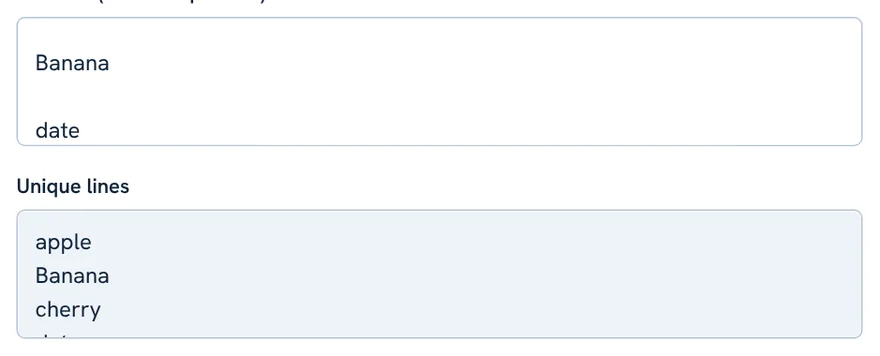
apple
Banana
apple
banana
cherry

Banana

date
apple
Banana
cherry
date
Four unique items remain from nine lines. apple , banana and the second Banana were recognised as repeats, and both empty lines were removed.
First Occurrence or Last Occurrence?
When a line appears several times, you choose which copy stays. The copy you keep also decides the position of the line in the result.
apple
Banana
apple
banana
cherry

Banana

date
(all cleaning options on, Last occurrence)
apple
cherry
Banana
date
- First occurrence keeps the earliest copy. Use it when the first entry is the one that matters, such as the oldest record.
- Last occurrence keeps the most recent copy. Use it when later entries are updates.
How Lines Are Compared
Two lines are duplicates when they are identical after the options you chose. Accented characters are compared in a normalised form, so é typed as one character and as e plus an accent count as the same. Empty lines are treated like any other line unless you remove them.
The Buttons
- Copy result: copies the unique lines (Ctrl + Enter, or Cmd + Enter on Mac).
- Select result: highlights the output.
- Download .txt: saves the result as a text file.
- Use result as input: moves the result into the input, handy when you want to run it again with other options.
- Paste, Try an example and Clear all work as in the other PHL Tools.
Real-Life Uses
- SEO: merge keyword lists from several tools, remove repeats, then sort them with the Line Sorter.
- Email and contact lists: remove repeated addresses before importing.
- URL lists: prepare a clean list for internal linking or a sitemap check.
- Students and teachers: combine name lists collected from different forms.
Tips and Limits
- Put one item per line. The tool cannot split a comma-separated list. Use Find and Replace to turn commas into line breaks first.
- Unsure which options to use? Start with all three cleaning options on, then check the result.
- Your list stays in your browser and is not uploaded.
FAQ
Does it keep the original order of my list?
Yes. Unique lines stay in the order of the copy you keep: the first copy by default, or the last copy if you choose Last occurrence.
Why were Apple and apple not treated as duplicates?
Matching is exact by default. Tick Ignore upper and lower case to treat them as the same line.
How do I remove blank lines too?
Tick Remove empty lines. Blank lines are deleted and reported separately from duplicates.
Can it handle a list separated by commas?
No, it works one item per line. First turn the commas into line breaks with Find and Replace.
Is my list uploaded?
No. All processing happens in your browser.
Related tool guides
کیا آپ کو فہرست سے ڈپلیکیٹ لائنیں ہٹانی ہیں؟ اسے PHL Tools کے مفت ڈپلیکیٹ لائن ریموور میں پیسٹ کریں اور صرف منفرد لائنیں اصل ترتیب میں حاصل کریں۔ اس مکمل گائیڈ میں ہر آپشن کی وضاحت ہے: بالکل ایک جیسا یا کیس نظرانداز میچ، اسپیس نظرانداز کرنا، خالی لائنیں ہٹانا، رکھی گئی لائنیں ٹرم کرنا اور پہلی یا آخری کاپی رکھنا۔ یہ کی ورڈ فہرستوں، ای میلز، URLs، ناموں اور لاگ فائلوں کے لیے کام کرتا ہے، بتاتا ہے کتنی ڈپلیکیٹ ہٹائیں، اور آپ کی فہرست اپلوڈ نہیں کرتا۔
Why Remove Duplicate Lines?
جب آپ فہرستیں کئی جگہوں سے جمع کرتے ہیں تو وہ بگڑ جاتی ہیں۔ تین ٹولز سے ملائی گئی کی ورڈ فہرست، کئی فارموں کی ای میل لسٹ، یا انٹرنل لنکس کے لیے URLs کی فہرست میں تقریباً ہمیشہ تکرار ہوتی ہے۔ آنکھ سے گننا سست اور ناقابلِ اعتماد ہے۔
ڈپلیکیٹ لائن ریموور ہر لائن کا موازنہ کرتا ہے، دہرائی لائن کی ایک کاپی رکھتا ہے اور بتاتا ہے کتنی ہٹائیں۔ فہرست کی ترتیب برقرار رہتی ہے، کچھ بکھرتا نہیں۔
Step by Step: Clean a List
- ڈپلیکیٹ لائن ریموور کھولیں۔
- فہرست پہلے خانے میں پیسٹ کریں، ہر آئٹم الگ لائن میں۔
- منفرد لائنیں Unique lines میں فوراً آ جاتی ہیں۔
- خانوں کے نیچے گنتی دیکھیں: کل لائنیں، رکھی گئی، ہٹائی گئی ڈپلیکیٹ اور ہٹائی گئی خالی لائنیں۔
- Copy result یا Download .txt دبائیں۔
apple
Banana
apple
banana
cherry

Banana

date
apple
Banana
apple
banana
cherry

date
ڈیفالٹ آپشنز کے ساتھ صرف بالکل ایک جیسی تکرار ہٹی: دوسرا Banana اور دوسری خالی لائن۔ apple (آخر میں اسپیس کے ساتھ) اور banana (چھوٹے حروف) الگ لائنیں سمجھی گئیں، اس لیے رہ گئیں۔ نیچے کے آپشن یہ ٹھیک کرتے ہیں۔
The Options Explained
- Ignore upper and lower case: Apple اور apple ایک ہی لائن سمجھی جاتی ہیں۔ کی ورڈز، ای میلز اور ناموں کے لیے ٹک کریں۔
- Ignore spaces at the start and end when comparing: جن لائنوں میں فرق صرف شروع یا آخر کی اسپیس کا ہو وہ ایک سمجھی جاتی ہیں۔ اسپریڈ شیٹ سے کاپی کی فہرستوں میں بہت عام۔ رکھی گئی لائن بالکل ویسی ہی رہتی ہے جیسی لکھی تھی۔
- Remove empty lines: خالی لائنیں مکمل ہٹاتا ہے اور انہیں ڈپلیکیٹ سے الگ رپورٹ کرتا ہے۔ اس کے بغیر صرف پہلی خالی لائن رہتی ہے۔
- Trim the lines that are kept: رکھی گئی لائنوں کے شروع اور آخر کی اسپیس بھی ہٹاتا ہے۔ یہ رکھی گئی لائنیں بدلتا ہے، اس لیے صرف صاف آؤٹ پٹ چاہیے ہو تو ٹک کریں۔
- Which copy to keep: First occurrence یا Last occurrence۔
Example With All Cleaning Options
اب اسی فہرست پر Ignore upper and lower case، Ignore spaces اور Remove empty lines ٹک کریں۔
apple
Banana
apple
banana
cherry

Banana

date
apple
Banana
cherry
date
نو لائنوں میں سے چار منفرد آئٹم بچے۔ apple ، banana اور دوسرا Banana تکرار پہچانے گئے اور دونوں خالی لائنیں ہٹ گئیں۔
First Occurrence or Last Occurrence?
جب کوئی لائن کئی بار آئے تو آپ چنتے ہیں کون سی کاپی رہے۔ جو کاپی آپ رکھتے ہیں وہی نتیجے میں لائن کی جگہ بھی طے کرتی ہے۔
apple
Banana
apple
banana
cherry

Banana

date
(تمام صفائی آپشنز آن، Last occurrence)
apple
cherry
Banana
date
- First occurrence سب سے پہلی کاپی رکھتا ہے۔ تب استعمال کریں جب پہلی اندراج اہم ہو، مثلاً سب سے پرانا ریکارڈ۔
- Last occurrence سب سے حالیہ کاپی رکھتا ہے۔ تب استعمال کریں جب بعد کی اندراجات اپ ڈیٹ ہوں۔
How Lines Are Compared
دو لائنیں تب ڈپلیکیٹ ہیں جب آپ کے چنے آپشنز کے بعد بالکل ایک جیسی ہوں۔ اعراب والے حروف نارمل شکل میں موازنہ ہوتے ہیں، یعنی ایک حرف کے طور پر لکھا é اور e کے ساتھ اعراب والا é ایک ہی گنے جاتے ہیں۔ خالی لائنیں دوسری لائنوں کی طرح لی جاتی ہیں جب تک آپ انہیں ہٹا نہ دیں۔
The Buttons
- Copy result: منفرد لائنیں کاپی کرتا ہے (Ctrl + Enter، میک پر Cmd + Enter)۔
- Select result: آؤٹ پٹ ہائی لائٹ کرتا ہے۔
- Download .txt: نتیجہ ٹیکسٹ فائل میں محفوظ کرتا ہے۔
- Use result as input: نتیجے کو ان پٹ میں لے جاتا ہے، دوسرے آپشنز سے دوبارہ چلانے کے لیے مفید۔
- Paste، Try an example اور Clear all دوسرے PHL Tools کی طرح کام کرتے ہیں۔
Real-Life Uses
- SEO: کئی ٹولز کی کی ورڈ فہرستیں ملائیں، تکرار ہٹائیں، پھر لائن سورٹر سے ترتیب دیں۔
- ای میل اور رابطہ فہرستیں: امپورٹ سے پہلے دہرائے پتے ہٹائیں۔
- URL فہرستیں: انٹرنل لنکنگ یا سائٹ میپ جانچ کے لیے صاف فہرست بنائیں۔
- طلبہ اور اساتذہ: مختلف فارموں سے جمع ناموں کی فہرستیں ملائیں۔
Tips and Limits
- ہر آئٹم الگ لائن میں رکھیں۔ ٹول کاما سے الگ کی گئی فہرست کو نہیں توڑ سکتا۔ پہلے فائنڈ اینڈ ریپلیس سے کاما کو لائن بریک بنائیں۔
- سمجھ نہ آئے کون سے آپشن لگائیں تو تینوں صفائی آپشنز آن کر کے شروع کریں اور نتیجہ دیکھیں۔
- آپ کی فہرست آپ کے براؤزر میں رہتی ہے اور اپلوڈ نہیں ہوتی۔
FAQ
کیا میری فہرست کی اصل ترتیب برقرار رہتی ہے؟
جی ہاں۔ منفرد لائنیں اس کاپی کی ترتیب میں رہتی ہیں جو آپ رکھتے ہیں: ڈیفالٹ پہلی کاپی، یا Last occurrence چننے پر آخری کاپی۔
Apple اور apple کو ڈپلیکیٹ کیوں نہیں سمجھا گیا؟
ڈیفالٹ طور پر میچ بالکل درست ہوتا ہے۔ انہیں ایک سمجھنے کے لیے Ignore upper and lower case ٹک کریں۔
خالی لائنیں بھی کیسے ہٹاؤں؟
Remove empty lines ٹک کریں۔ خالی لائنیں حذف ہو جاتی ہیں اور ڈپلیکیٹ سے الگ رپورٹ ہوتی ہیں۔
کیا کاما سے الگ کی گئی فہرست چلے گی؟
نہیں، یہ ایک آئٹم فی لائن پر چلتا ہے۔ پہلے فائنڈ اینڈ ریپلیس سے کاما کو لائن بریک بنائیں۔
Related tool guides
More tool guides
Roman Urdu to Urdu Converter
Type Roman Urdu, get Urdu script. Click any word to pick another spelling.
Word Counter
Count words, characters, sentences and paragraphs, with reading time and keyword frequency.
Case Converter
Change text to UPPERCASE, lowercase, Title Case, camelCase, snake_case and more.